
-
InstaPay WebPay
-
WebPay Integration
-
Shopping Cart Plugins
-
- Articles coming soon
-
Testing
 Install app
To perform a test for the ‘Scan to Pay’ (formerly known as Masterpass) payment option, you’ll need a mobile device (Android or iOS) equipped with a Masterpass-enabled app. The Masterpass app can be downloaded from the Android and iOS stores.
Set app to test mode
IMPORTANT: The Scan-to-pay enabled mobile app must be set up in testing mode to facilitate the testing process.
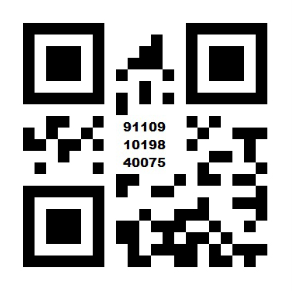
To change the mode of the Masterpass-enabled app between ‘Live’ and ‘Test’, you will need to scan the following QR code with the Masterpass app.
Once the Masterpass-enabled app is set to Test mode, specific card information must be used to test the various transaction outcomes.
Test cards and expected outcomes
| Card details | Expected results | |
|---|---|---|
|
Debit Cards |
5001000100010500 |
This will simulate the return of a valid debit card payment (code 00) and the user will be redirected to a “payment successful” page and then back to the originating e-commerce platform return URL (m_return_url) |
|
5001000100010100 |
This will simulate the return of a failed debit card payment due to one insufficient funds (code 51). The user will be able to reselect a payment method from the main screen. |
|
|
5001000100010300 |
This will simulate the return of a failed debit card payment due to the issuer or switch being inoperative or bank unavailable (code 91). The user will be able to reselect a payment method from the main screen. |
|
|
Credit Cards |
5002000100010500 |
This will simulate the return of a valid credit card payment (code 00) and the user will be redirected to a “payment successful” page and then back to the originating e-commerce platform return URL (m_return_url) |
|
5002000100010100 |
This will simulate the return of a failed credit card payment due to one insufficient funds (code 51). The user will be able to reselect a payment method from the main screen. |
|
|
5002000100010300 |
This will simulate the return of a failed credit card payment due to the issuer or switch being inoperative or bank unavailable (code 91). The user will be able to reselect a payment method from the main screen. |
|
The functionality of the Masterpass payment option varies depending on the device being used for the payment process. The user is redirected as follows:
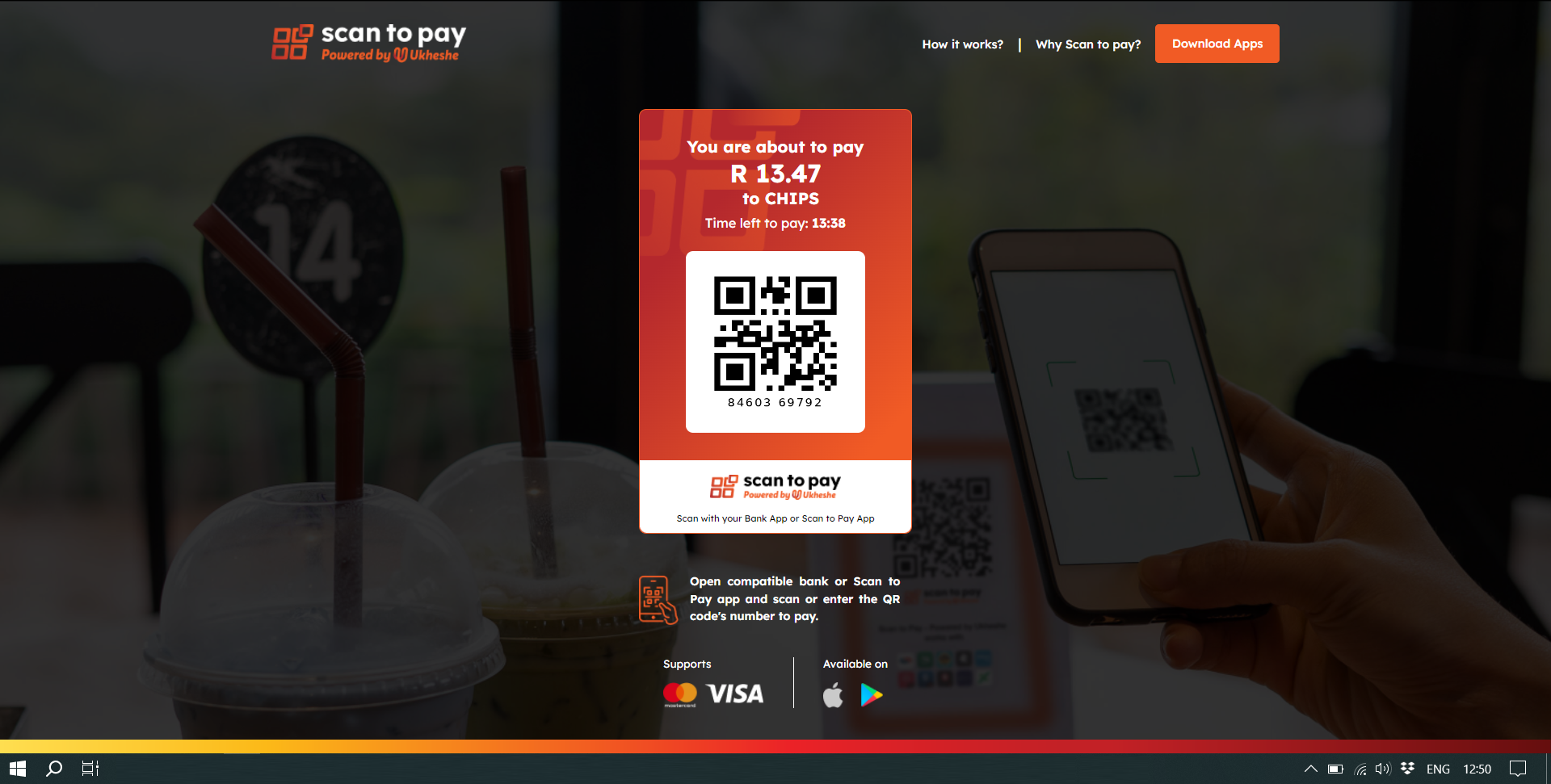
PC Web Browse Screen layout
If the user utilizes a standard web browser on a personal computer, they will encounter a Masterpass-hosted web page. This page contains a QR code that can be scanned and paid through the Masterpass-enabled mobile application
Mobile Device Browser Screen Layout
If the user makes use of a mobile device, the device's browser will automatically seek out a Masterpass-enabled app installed on the device. If available, open the app with the payment request details provided.
